
Вывод каталога на главной странице
Иногда есть необходимость вывести весь каталог на главной странице, это можно сделать воспользовавшись нашей инструкцией. Мы предлагаем два варианта вывода каталога на главной странице - простым текстом и с картинками.
Вариант №1 (Простым текстом)
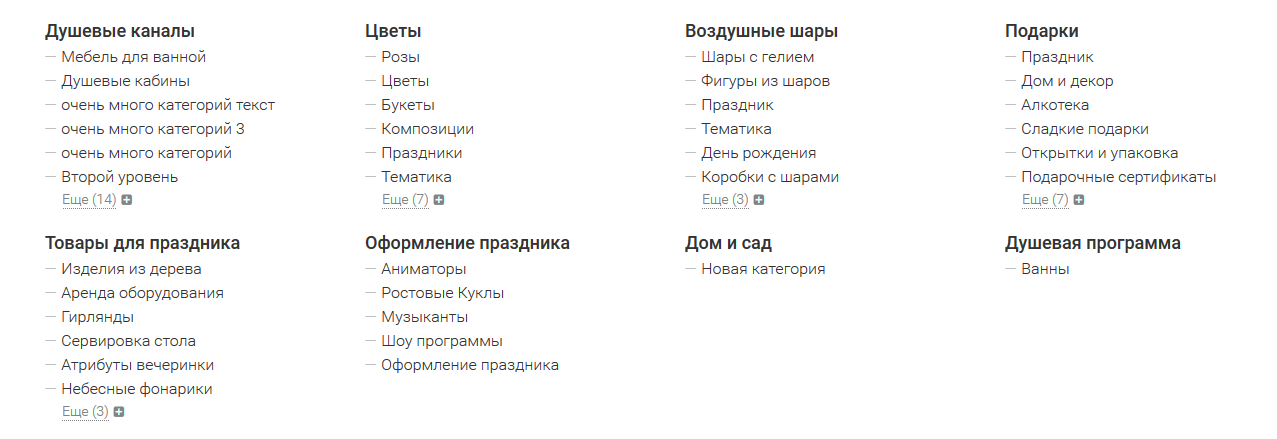
Данный код можете вставить в файл home.single.html
{if $categories_shop = $wa->shop->categories(0, null, true, true)}
<div class="row c-main-text">
    {foreach $categories_shop as $lvl1}
    <div class="col-lg-3 col-md-3 col-sm-6 col-xs-6">
            <div class="name-lvl-one"><a href="{$lvl1.url}">{$lvl1.name}</a></div>
            {if $lvl1.childs}
                {foreach $lvl1.childs as $lvl2}
                     <div class="name-lvl-two"{if $lvl2@iteration > 6} style="display:none;"{/if}>— <a href="{$lvl2.url}">{$lvl2.name}</a></div>
                {/foreach}
                {if $lvl1.childs|count > 5}
                    <div class="show-more"><a href="">Еще ({$lvl1.childs|count - 5})</a><i class="fa fa-plus-square"></i></div>
                {/if}
            {/if}
    </div>
    {/foreach}
</div>
<script>
    $(".show-more a").click(function () {
        $(this).closest(".col-lg-3").find(".name-lvl-two").fadeIn();
        $(this).parent(".show-more").hide();
       return false;
    });
</script>
{/if}
Добавить в файл user.css код
.c-main-text {
  display: -webkit-box;
  display: -webkit-flex;
  display: -ms-flexbox;
  display: flex;
  flex-wrap: wrap;
}
.c-main-text [class*="col-"] {
  display: flex;
  flex-direction: column;
}
.c-main-text .col-lg-3 {
  margin-bottom: 20px;
  height: auto;
}
.c-main-text a {
  color: #333333;
}
.c-main-text .name-lvl-one {
  font-size: 18px;
  font-family: 'Roboto-Medium', serif;
}
.c-main-text .name-lvl-two {
  font-size: 16px;
  font-family: 'Roboto-Light', serif;
  color: #c0c0c0;
}
.c-main-text .show-more {
  font-family: 'Roboto-Light', serif;
  color: #838383;
  margin-left: 17px;
  font-size: 12px;
}
.c-main-text .show-more .fa {
  margin-left: 5px;
}
.c-main-text .show-more a {
  font-size: 14px;
  color: #838383;
  border-bottom: 1px dotted #838383;
}
.c-main-text .show-more a:hover,
.c-main-text .show-more a:focus {
  text-decoration: none;
}
Вариант №2 (с картинками)
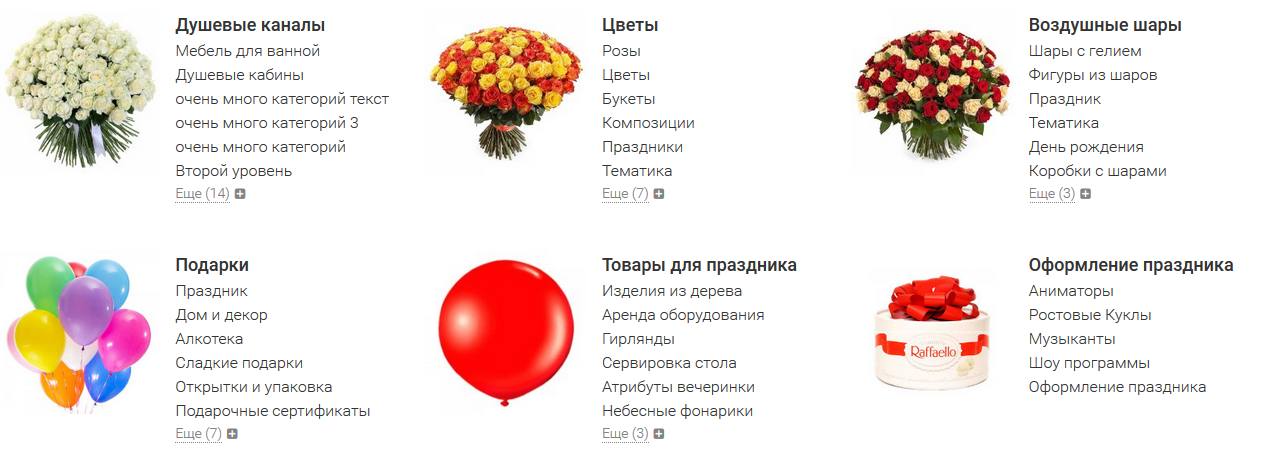
{if $categories_shop = $wa->shop->categories(0, null, true, true)}
<div class="row c-main-image">
    {foreach $categories_shop as $lvl1}
    <div class="col-lg-3 col-md-3 col-sm-6 col-xs-6">
        <div class="row">
            <div class="col-lg-3 col-md-4 col-sm-3 col-xs-3"><a href="{$lvl1.url}">{if $lvl1.params.img}<img src="{$lvl1.params.img}" alt="{$lvl1.name}">{else}<img src="{$wa_theme_url}img/no-foto.gif" alt="{$lvl1.name}">{/if}</a></div>
            <div class="col-lg-9 col-md-8 col-sm-9 col-xs-9">
                <div class="name-lvl-one"><a href="{$lvl1.url}">{$lvl1.name}</a></div>
                {if $lvl1.childs}
                {foreach $lvl1.childs as $lvl2}
                <div class="name-lvl-two"{if $lvl2@iteration > 6} style="display:none;"{/if}><a href="{$lvl2.url}">{$lvl2.name}</a></div>
                {/foreach}
                {if $lvl1.childs|count > 5}
                <div class="show-more"><a href="">Еще ({$lvl1.childs|count - 5})</a><i class="fa fa-plus-square"></i></div>
                {/if}
                {/if}
            </div>
        </div>
    </div>
    {/foreach}
</div>
<script>
    $(".show-more a").click(function () {
        $(this).closest(".col-lg-3").find(".name-lvl-two").fadeIn();
        $(this).parent(".show-more").hide();
        return false;
    });
</script>
{/if}
Добавить в файл user.css код
.c-main-image {
  display: -webkit-box;
  display: -webkit-flex;
  display: -ms-flexbox;
  display: flex;
  flex-wrap: wrap;
}
.c-main-image [class*="col-"] {
  display: flex;
  flex-direction: column;
}
.c-main-image .col-lg-5 {
  margin-bottom: 20px;
  height: 220px;
  padding-right: 0 !important;
}
.c-main-image img {
  max-width: 100%;
}
.c-main-image a {
  color: #333333;
}
.c-main-image .name-lvl-one {
  font-size: 18px;
  font-family: 'Roboto-Medium', serif;
}
.c-main-image .name-lvl-two {
  font-size: 16px;
  font-family: 'Roboto-Light', serif;
  color: #c0c0c0;
}
.c-main-image .show-more {
  font-family: 'Roboto-Light', serif;
  color: #838383;
  font-size: 12px;
}
.c-main-image .show-more .fa {
  margin-left: 5px;
}
.c-main-image .show-more a {
  font-size: 14px;
  color: #838383;
  border-bottom: 1px dotted #838383;
}
.c-main-image .show-more a:hover,
.c-main-image .show-more a:focus {
  text-decoration: none;
}
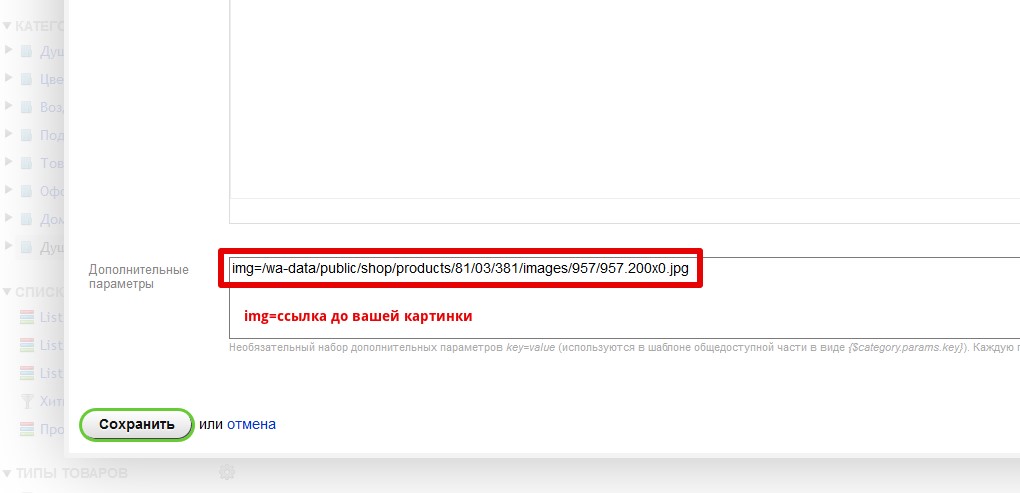
Для главной категории надо использовать дополнительное поле для вывода картинки. Загрузите картинку и вставьте её в дополнительное поле категории. См. картинку ниже:
Смотрите также
8 октября 2025
22 сентября 2025
19 февраля 2025
26 июля 2024
10 июня 2024
26 октября 2023
7 июля 2023
31 октября 2022